
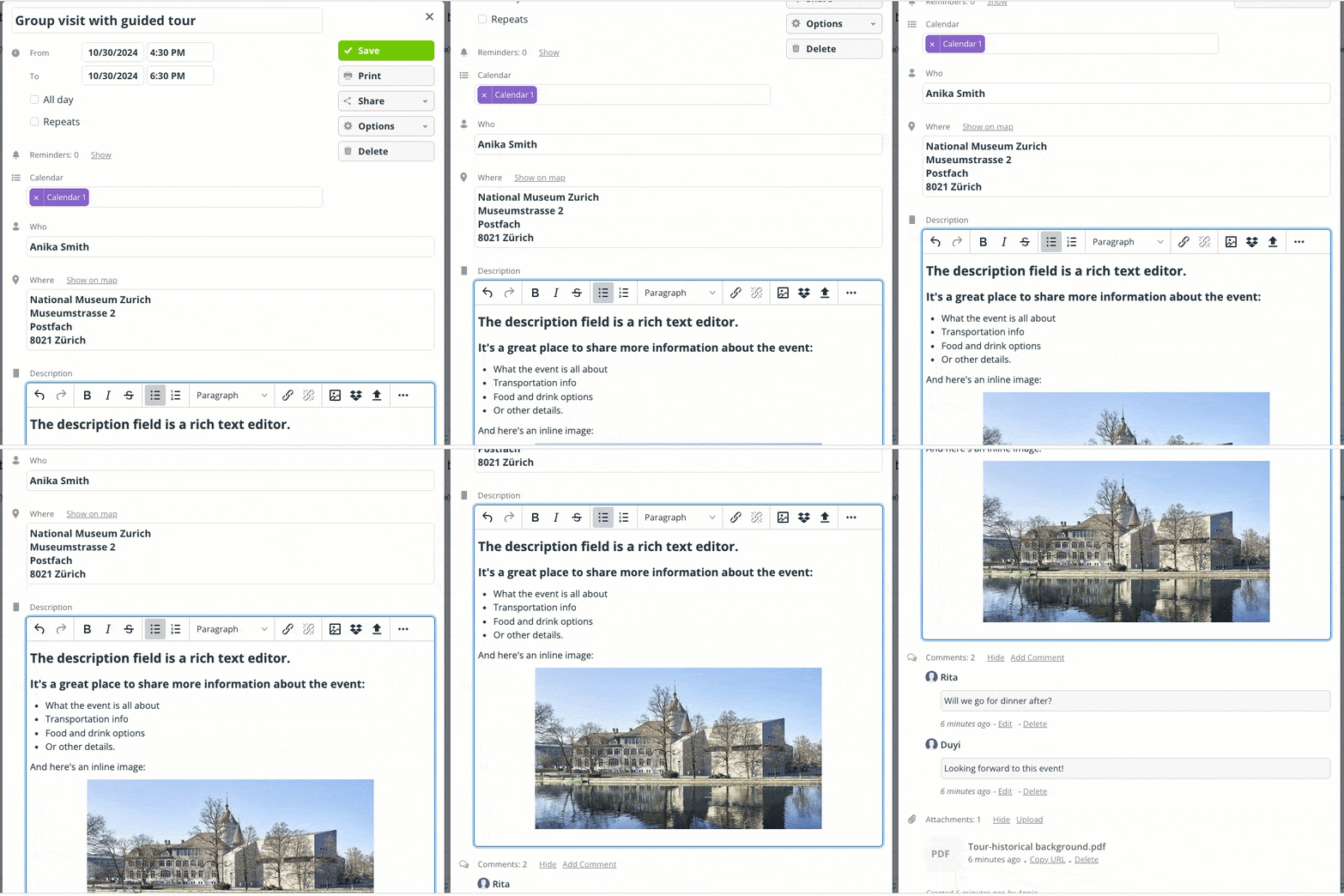
What are event fields?
When you create an event, you can enter information in the event editor. These are the event fields and they hold all the details about an event.
For users who are adding or modifying an event, the event editor contains multiple fields which hold all the event information. For users who are viewing an event, the event viewer displays the information that’s been entered into the event fields. Teamup has built-in default event fields and supports custom event fields.
Default event fields
These are the default event fields:
- Title
- Calendar
- Who
- Where
- Description
- Signup
- Comments
- Attachments
These event fields come built-in with Teamup. The calendar administrator can configure them by renaming, rearranging, setting defaults, and disabling unneeded fields.
Custom event fields
Teamup also supports custom event fields. The calendar administrator can create and manage custom fields. There are different custom field types:
- Single-line text field and formatted text field.
- Choice field with options (single choice or multiple choice).
- Numerical data field.
- Formatted text field.
The number of custom fields and options available depends on the calendar’s subscription level. See our pricing page for details.
Using event fields
Event fields are fully functional on both a browser and the Teamup app:
- Click or tap to add a new event on the calendar.
- Or open an event to edit it. If needed, click the Edit button if go from the event viewer to the event editor.
- Place your cursor into the field you want to edit.
- Type or select to add information to the field.
- Save the event.
If you are not able to add an event or open the event editor, your access permission does not allow you to add or modify events on that calendar. Contact your calendar administrator to request a permission change if needed.
Special-use event fields
Event signups and event comments are different than other event fields:
- Event signups and event comments can be configured so that all users, even those with read-only access, can use them:
- Share an embedded public calendar with secure, read-only access and let people sign up for events.
- Provide read-only access to a staff calendar, but let employees add notes and files using event comments.
- The default configuration for event signups and event comments can be overridden for an individual event. For example, event signups can be enabled for all users by default; but on any individual event, signups can be disabled or enabled only for users with modify access.dd
Uploading files and images
Files can be uploaded in three fields: Description, Comments, and Attachments.
Set visibility for event fields
For all event fields (except the Title and Calendar fields) you can set the visibility level. There are two visibility levels: All users or Users with modify permission. When a field’s visibility is set to Users with modify permission, that field will be hidden from users who do not have modify access to the calendar.
Read-only access to event fields
If an event field is visible to All users, it will be displayed to read-only users:
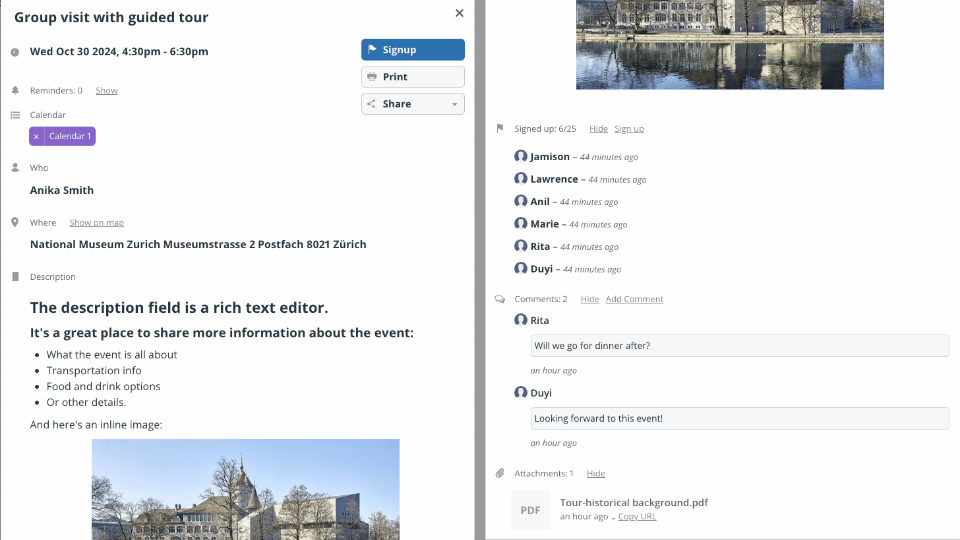
- Event fields are displayed in the event viewer (rather than the event editor).
- Event fields are also visible on the event page.
- If an event field is empty, it will not be displayed.
- Users with read-only access can view and download uploaded images and files.
No-details access hides event fields
Users who are given an access permission that has no details will not see event fields, regardless of the field’s visibility setting. When you use a no details permission, the user will see only basic information about the event:
- The event title will show as Reserved.
- The event time and date will be visible.
- The name of the calendar(s) will be visible.
All other event fields will be hidden. Users will not see or be able to download files or images.