
Teamup Calendar is a customizable and efficient shared calendar for groups.
A Teamup calendar
A Teamup calendar is a calendar which can be used on a web browser, mobile browser, or with Teamup mobile apps.
When you create a new Teamup calendar, you are required to have a Teamup user account. If you don’t have one yet, you will need to create one. A user account is required in order to create a new master calendar.
A calendar may have multiple sub-calendars. A calendar may be shared among many users. A calendar may be free or can be upgraded to a paid subscription plan. See a feature comparison for the plans.
Note: Older Teamup calendars could be created without having a Teamup user account. If you’re still accessing your calendar via an administrator link, switch to account-based access. Please follow these steps to do so.
A Teamup user account
Teamup user accounts are personal and each account is associated with a unique email address. User accounts are free and may be granted access to multiple master calendars. Think of user accounts as unique individuals, each with a unique ID.
With a user account, here are some of the things you can do:
- Have account-based calendar access via your user account. Calendar administrators can grant calendar access to Teamup users, organize users in groups, and manage calendar access and permission levels.
- Have a synced dashboard for access to all the calendars you have been granted access to, including those you created. Think of the dashboard as a key ring that holds all the keys to the calendars you can access.
- Set up and manage event change notifications and reminders, so you don’t miss any important changes or upcoming events.
- Learn more about the benefits of having a user account.
Teamup calendar access
With Teamup, calendar access is centrally controlled by the calendar administrator. Imagine the calendar as an office building. The administrator decides who gets to come into the building.
- Account users must log into their Teamup user account with a verified email address. Account-based access is like setting up a personalized ID badge to enter the office building. This method provides a higher level of security and control.
- Link users are not verified individually. A calendar link is like a key that can be passed along to anyone or shared with a large group. Using a calendar link is the best way to embed a calendar on a website or intranet, so anyone who needs to view the calendar can access it directly.
Each Teamup master calendar is on its own subscription plan. The subscription plan determines the total number of users allowed for each master calendar. See our pricing page for details.
Calendar invitations for account users
You may receive an invitation via email to join a Teamup calendar as an account-based user. If so, simply follow the link in the invitation email. Or, to get started, register here.
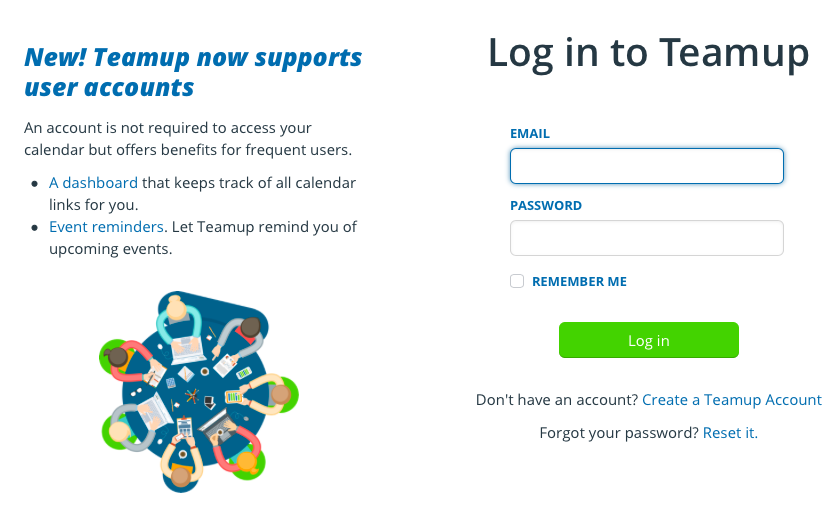
Once you have created your Teamup user account, log in to see your calendar dashboard.
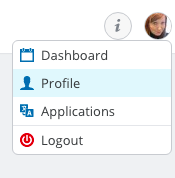
- On your calendar dashboard, you will see any calendars you have been invited to access.
- You can add other Teamup calendars to your dashboard, as well.
- You can download the Teamup mobile app for iOS or Android, log in to your user account, and access your calendar(s) from the synced calendar dashboard. See full instructions and download links here →
- If you create a new calendar using the same email address as your user account, your new calendar will automatically appear on the dashboard of your user account.
- When you access a calendar while you are logged into your user account, your user avatar will appear in the top right corner of the calendar.
- When logged in, you will also see a green plus button on any calendar that you have not yet added to your calendar dashboard.
A few tips
Remember: if you don’t remember having a password for your Teamup Calendar, you may be trying to access your calendar through the account user login page, instead of using your calendar link.
This can be confusing. Here’s some help:
- If you’ve never needed a password to open your calendar before, you may have been using a shareable link instead of account access. Contact your calendar administrator for a new link or ask them to add you as a user.
- Create a free Teamup user account. Once you’re logged in to your user account, you can save all your calendar links to your calendar dashboard. See more information here.
- If you have a user account, you can login to it by clicking Login in the top right on Teamup home page, or by going to the login page directly: teamup.com/login. You will need to enter your email address and password.
- If you’ve forgotten the password for your user account, click the link on the login page to reset it.