
Manage calendars at scale across your entire organization:
- One organization-level view to manage all Teamup calendars in one place.
- Consolidated billing, with all calendar subscriptions on one invoice.
- Single sign-on (SSO) for secure access and easy offboarding.
About Teamup Organization Accounts
An organization account provides centralized, enterprise-level management for all the Teamup calendars used in your organization:
- One org-wide user count instead of separate user limits tied to each calendar’s subscription.
- Consolidated billing for all calendars included in the organization.
- Single sign-on support for logins managed by your organization’s identity provider.
- Compliance management with company IT able to view and administrate all calendars used within the organization.
How organization accounts work
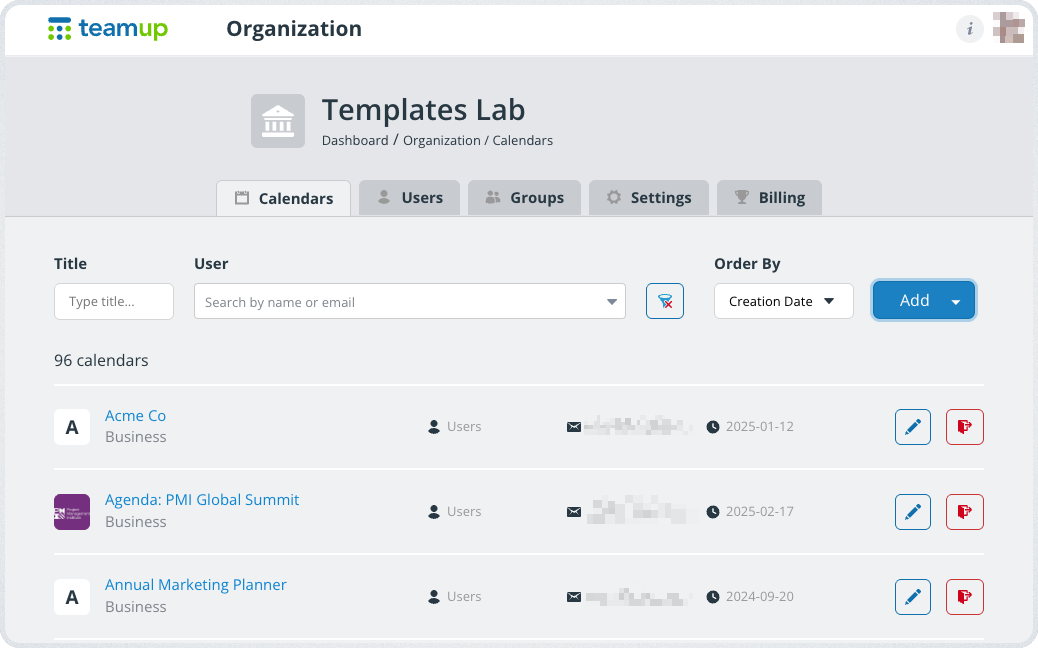
An organization interface provides one place for centralized administration. Organization administrators can see the organization’s total user count, manage users at the org level, organize users in organization-wide groups, add/remove master calendars, and handle billing.
- One user count: Once a calendar is part of the org account, its plan’s own user limit no longer applies.
- Organizational billing: The organization account fee + all calendar subscriptions in the organization are consolidated at the organization level.
- Org-level user management: Users can be removed at the organization level, which automatically removes their access to any calendar within the organization.
Each master calendar in the organization is still on its own subscription and managed by its own administrator(s). Calendar administrators can manage which organization users have access to that calendar and set their access permissions. Calendar admins also configure the master calendar’s settings and manage sub-calendars, custom fields, and notifications.
- Each master calendar has its own subscription plan, which covers features like sub-calendars, custom fields, and storage. User limit is determined by the organization user limit, not the calendar’s subscription.
- A master calendar’s subscription level can be changed as needed without affecting the organization account or other master calendars within the organization.
- Org admins have full admin access to every calendar in the organization, to review and adjust per-calendar subscriptions as needed.
Set up an organizational account
Contact us
To get started with a Teamup Organization Account, please contact us with the following information:
- A brief description of your primary use case or business context.
- The number of master calendars in use/needed: You can bring existing master calendars into your organization seamlessly. Add more whenever needed.
- The total number of users across your organization who need calendar access.
- Whether SSO is required.
Set up SSO
Single sign-on (SSO) is an authentication method that allows users to access multiple apps, systems, and tools with a single set of credentials. An organization account is required for SSO support.
Teamup supports SSO with Google Workspace, Microsoft Azure, Okta: OIDC, Okta: SCIM, and OneLogin: OIDC.
To set up SSO for your Teamup Organization Account, contact us with the domain name to enable for SSO. List all if you need to enable multiple domains for SSO.
Once the domain name is set up, use the appropriate guide to complete SSO setup with your provider:
- Single Sign-On with OneLogin
- Single Sign-on with Okta: SCIM Integration
- Single Sign-on with Okta: OIDC Integration
- Single Sign-On with Google Workspace: OIDC Integration
- Single Sign-On with Microsoft Entra ID: OIDC and SCIM Integration
Access settings
Org Account Settings are available to org administrators through their Dashboard (browser only):
- Log into your Teamup account.
- Locate the organization name on your dashboard.
- Click Settings.
Note: Organization accounts cannot be managed in the Teamup mobile app. Org Account Settings are only accessible in a browser.
Add and manage calendars
Add an existing calendar
- In a browser, log into your Teamup account.
- Click Settings next to the organization name.
- Go to the Calendars tab.
- Click the blue Add button.
- Select Add existing calendar.
- Paste or type in the calendar link.
- Click Add calendar.
Create a new calendar
- In a browser, log into your Teamup account.
- Click Settings next to the organization name.
- Go to the Calendars tab.
- Click the blue Add button.
- Select Create calendar.
- Fill in a calendar name and select other options as needed on the creation screen.
- Click the green Create button.
Remove a calendar
Removing a calendar from an Organization Account does not delete the calendar itself. It is only removed from the organization and no longer included in the consolidated org billing. The calendar itself still exists and is still accessible to former users from their own user dashboard.
- Note that when a calendar with an active subscription is moved out of the organization, the associated subscription and all billing details are lost. The calendar is reverted to a free trial; a calendar administrator must enter new billing details and manually reactivate a paid subscription. Details here.
- To change or cancel the subscription for an organizational calendar (without removing it from the organization), access the calendar’s settings and follow these steps.
- If a calendar is no longer needed and should be deleted, access the calendar’s settings and follow these steps.
To remove a calendar from the Organization Account only:
- In a browser, log into your Teamup account.
- Click Settings next to the organization name.
- Go to the Calendars tab.
- Find the calendar to be removed in the list of organizational calendars. You can search by the calendar title and order the list by creation date, calendar title, or subscription plan.
- Click the trashcan icon next to the calendar to be removed.
- On the confirmation screen, enter your user password and click Remove.
Add and manage users
Add a user
- In a browser, log into your Teamup account.
- Click Settings next to the organization name.
- Go to the Users tab.
- Enter the email address of the new user and click Search.
- Enter the name of the new user.
- Click Save.
Remove a user
Removing a user from the organization removes that user’s access to all organizational calendars. The user may still have access to other Teamup calendars that are not part of the organization.
- In a browser, log into your Teamup account.
- Click Settings next to the organization name.
- Go to the Users tab.
- Find the user in the list and click the trashcan icon next to that user.
- Confirm on the next screen by clicking Delete.
Groups
Use organization groups when multiple users of your organization needs identical access to multiple organizational calendars.
- Organization groups are created by an org admin in the Org Account.
- Organization groups are visible in each master calendar in the Settings > Sharing section. They are labeled as “Global Groups.”
- Org group permissions are configured in each master calendar in the Settings > Sharing section.
- A summary of group permissions is shown in the Organization Account: Go to Organization > Groups, click a group name, and scroll to the Organization calendars section.
- Each master calendar can also have user groups that are limited only to that calendar (not org-wide).
Create an organization group
- In a browser, log into your Teamup account.
- Click Settings next to the organization name.
- Go to the Groups tab.
- Click Create group.
- Enter a name for the group, then use the search field to select users to add to the group.
- Click Save.
Configure permissions for an organization group
- In a browser, log into your Teamup account and open an organizational calendar.
- Go to Settings > Sharing.
- Filter by type (Groups) or keyword (org group name) to quickly find the org group in the Sharing list. Organization groups have a “Global Group” label.
- Click the group name to view and edit the group configuration.
- Scroll to the Calendars Shared section.
- Select sub-calendars and assign permissions as needed.
- Click the green Save button.
The Group Members section shows all users who are members of the group. Users can be added or removed through the Organization Account.
Add users to an organization group
New user: When adding a new user to the organization, you can add the user to any existing groups in the Organization Groups section of the user’s configuration.
Existing users: In the Organization Account, go to the Users tab. Click on an user’s name, then scroll to the Organization Groups tab. Select groups from the field to add the user to those groups. Click Save.
Remove users from an organization group
- In a browser, log into your Teamup account.
- Click Settings next to the organization name.
- Go to the Groups tab.
- Scroll to the Group Members section.
- Click the trashcan icon next to any user you wish to remove from the group.
Administration and billing
Access organizational settings
Organization Account settings are available in a browser only.
- Log into your Teamup account.
- Locate the organization on your dashboard.
- Click Settings.
Add a organizational administrator
When adding a new user, select Yes in the Organization Administration section and choose the appropriate role:
- Administration: Grants full control of calendars and users, excludes access to the billing information.
- Owner: Grants full control including access to the billing information
For current users:
- From the the Users tab, click the needed user to open the editing screen.
- Select Yes in the Organization Administration section.
- Select Administration or Owner.
- Click Save.
Manage billing
- In a browser, log into your Teamup account.
- Click Settings next to the organization name.
- Go to the Billing tab.
The Billing section will show your current organization account billing amount and cycle, as well as a list of calendars and their active subscriptions.
- Use the options at the top of the Billing screen to change organizational account options such as user limits and billing cycle.
- Click the Billing Details button to change the billing information or payment method.
To change the subscription plan for any specific calendar, go to the Calendar Settings for that specific master calendar. In the Subscription tab, make the needed changes and save. See more.
- Adding a calendar: Its existing subscription, if it has one, converts to your org’s consolidated billing cycle, with any leftover credit applied automatically.
- Upgrading a calendar’s plan: This is separate from your org’s user count. It only affects that calendar’s own features, such as sub-calendars, custom fields, and storage. Do this in the respective calendar’s settings. See more.
Organization Account FAQ
Answers to common questions about how organization accounts work at Teamup.
How many master calendars can be added to an org account?
There’s no fixed limit. Org accounts are priced by total user count, not by the number of master calendars. You can use as many master calendars as your organization needs. Each one carries its own standard plan price on top of the org account fee.
Do external users (contractors, clients, partners) count toward my user total?
Yes. Org account pricing is based on the number of users who need calendar access, whether they’re internal staff or external contractors. If someone only needs temporary or project-limited access, you can remove them once that period ends, which frees up their user spot for someone else.
How does billing work when I move calendars into an org account?
When a master calendar is moved into the organization, its subscription fee is added to the consolidated billing at the organization level. Calendar subscription fees are charged in addition to the Organization Account fee. Contact us with the number of master calendars, their subscriptions, and the approximate number of users for a quote.
How do I set up single sign-on (SSO) for my organization?
SSO is included in every org account’s base fee. Provide the domain needed for SSO; we’ll enable it, then you can use one of our guides to complete setup. Teamup supports SSO with Google Workspace, Microsoft Entra ID, Okta. and OneLogin.
What happens to someone’s calendar access when they leave the organization?
When an org admin removes a user from the organization, that user’s access to every calendar in the organization is revoked immediately. They don’t need to be removed from each calendar separately. This keeps off-boarding simple, protects calendar data, and prevents unauthorized access to organizational calendars.