
When viewing a Teamup Calendar in some calendar views, including day, week, month, or multi-week, the size of the blocks on the calendar grid are dependent on your screen size and resolution.
In some cases, such as when you are viewing your calendar on a small screen or on a screen with a high resolution, the font can become difficult to read as it has a very small space to be displayed in.
While there is no specific Teamup Calendar setting to increase the font size, you can use your computer’s zoom functionality to change the font size when using Teamup on a browser.
Change font size on a browser
For most browsers: Go to your browser’s view menu and choose the zoom in or out options. See the instructions for all browsers. Or use the keyboard shortcuts below:
- Windows: Press ctrl + together to zoom in. Press ctrl – to zoom out. A zoom status box appears in the top right for a few seconds where you can press + or – to adjust further. Pressing ctrl 0 together resets your window to normal zoom.
- Mac: Press command + together to zoom in. Press command – to zoom out. Press command 0 to reset your zoom level.
- Linux: For most distributions, press ctrl + together to zoom in. Press ctrl – to zoom out. Some distributions: Hold down the Alt key and scroll your mouse wheel up to zoom in; scroll down to zoom out.
Typically, each key press repetition will change the zoom by several degrees. You can zoom in to varying degrees in different browsers. Experiment to see what works best for you.
An example of a zoomed in calendar
See below an example of a calendar at normal size (100%) and at zoomed in (175%). The font size increases with the zoomed-in view.
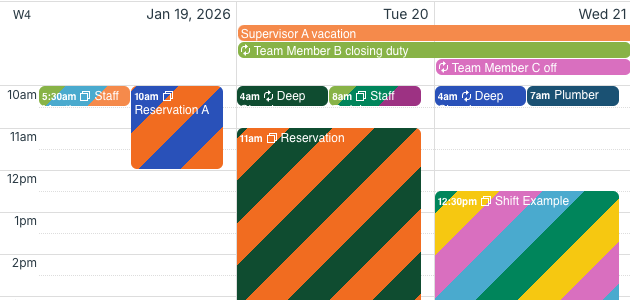
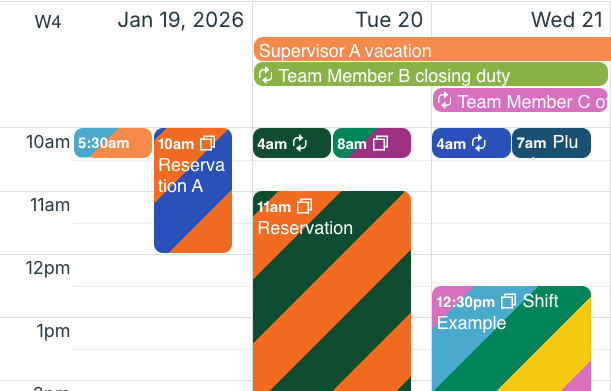
Note that collapsing the control panel and changing the calendar resolution provides more space for the calendar grid.
Related resources: