
You can share Teamup by adding users. Users can be invited by email (account access) or given an account-less shareable link. Links provide less security as they do not require login and are not connected to a particular individual; we recommend only using links with read-only permission in certain scenarios.
If you have access to many Teamup calendars, here’s how to tell whether you have account access via email or access via shareable link.
On the dashboard
If you have account access via email to any calendar, that calendar will automatically be added to your dashboard. You can also add calendar links to your dashboard.
Browser dashboard
 When viewing your dashboard on a browser:
- Below the calendar title, account access will show a user avatar beside the user name.
- Below the calendar title, calendar links will show a link icon next to the link name.
- Administrator-level access will be indicated with a crown icon in the top right corner of the calendar title.
Mobile dashboard
On mobile, the user name or the link name will appear below the calendar title.
In the calendar
When using any Teamup calendar, look for these differences to see if your access is account-based or is a link:
On a browser
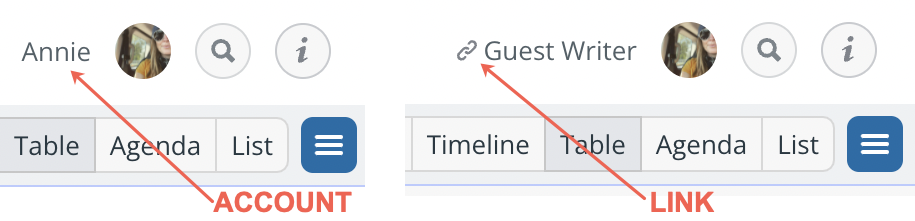
In the top right corner of the calendar, account-based access will show your user name. A calendar link will show a link icon with the link name.
On a mobile app
The differences are similar to those on the dashboard, but you’d need to open the left sidebar. For account-based access, the user name with the profile picture would appear below the calendar title. For link-based access, it shows the link icon and the name of the link.
The Calendar URL
The two types of Teamup calendar URLs
Because there are two ways to add users, there are two types of calendar access URLs:
- An account-based URL can only be used by authorized account users. More details below.
- A link-based URL, or shareable calendar link, can be used by anyone who has it. More details below.
Keep in mind the security implications of these two types of access. If an unauthorized person has an account-based URL, they won’t be able to use it. But if someone has a shareable calendar link, they will be able to use it since it does not require login.
View a Teamup calendar URL
In a browser: Open the calendar and click into the browser’s address bar. You can copy and paste the URL if needed.
In the Teamup app: Open the left sidebar. Tap the gear icon. Look in the Calendar URL section. You can copy the URL or open it in a mobile browser if needed.

Account-based calendar URL
If you share an account-based calendar URL, only authorized users can use it to access the calendar.
An account-based calendar URL looks like this:
 The calendar ID is like a special account number which is used for all account-based users who have access to that calendar.
To use an account-based calendar URL, each user has to login with their user name and password (and optional 2FA) to access the calendar. When they login, they can open the calendar with the customized access that’s been assigned to that specific user.
Even though all account users have a URL with the same calendar ID, they each get unique, customized access to the calendar based on the permissions assigned to the individual user.
Link-based calendar URL
If you share a link-based calendar URL, anyone can use it to access the calendar.
A link-based calendar URL looks like this:
 The calendar key starts with /ks and is followed by a 16-digit alphanumeric string.
A link-based calendar URL can be used by anyone to open the calendar directly.
In some cases, this easy access is ideal: Link-based access does not require users to login or have any user account. It is simple and convenient. Link-based access is widely used to share read-only Teamup calendars or embed a calendar into a public website with read-only permission.
Secure calendar sharing
With Teamup, the primary way to share a calendar is through account-based access.
- If you or others on your team are using shareable calendar links to access the calendar, here’s how to switch to account-based access.
- If you need to add new people to the calendar, add them via email. Here are the steps.
- Use shareable calendar links only in certain situations:
- To provide temporary calendar access for someone outside your organization, to embed a calendar on your own website, or to share a read-only view of the calendar.
- ⚠️ Since anyone can access the calendar via a shareable link, be very careful to set the appropriate permission (read-only is the recommended default).
- Regularly review and delete any calendar links that are no longer needed for authorized use.