
Troubleshooting: If you should be getting email notifications about calendar changes but aren’t, here are some things to check.
Check your notification subscriptions
You must be logged in to your Teamup user account to set up or modify email notifications.
On a browser
- Log into your Teamup account on a browser.
- Open a calendar from your dashboard.
- Click the blue menu (top right).
- Click Preferences.
- Click Email Notifications.
- If the toggle is red/x, email notifications for that calendar are not active. Click the toggle to green/√ then review the When and What settings for your notifications. Learn more.
On the Teamup app
- Open the Teamup app.
- From the dashboard, open the calendar you wish to check for notifications.
- Swipe to open the left sidebar.
- Tap the gear icon to open app settings.
- Tap Change notifications.
- Tap Email notifications to view/modify email notification details for that calendar. Learn more.
Check your sub-calendar settings
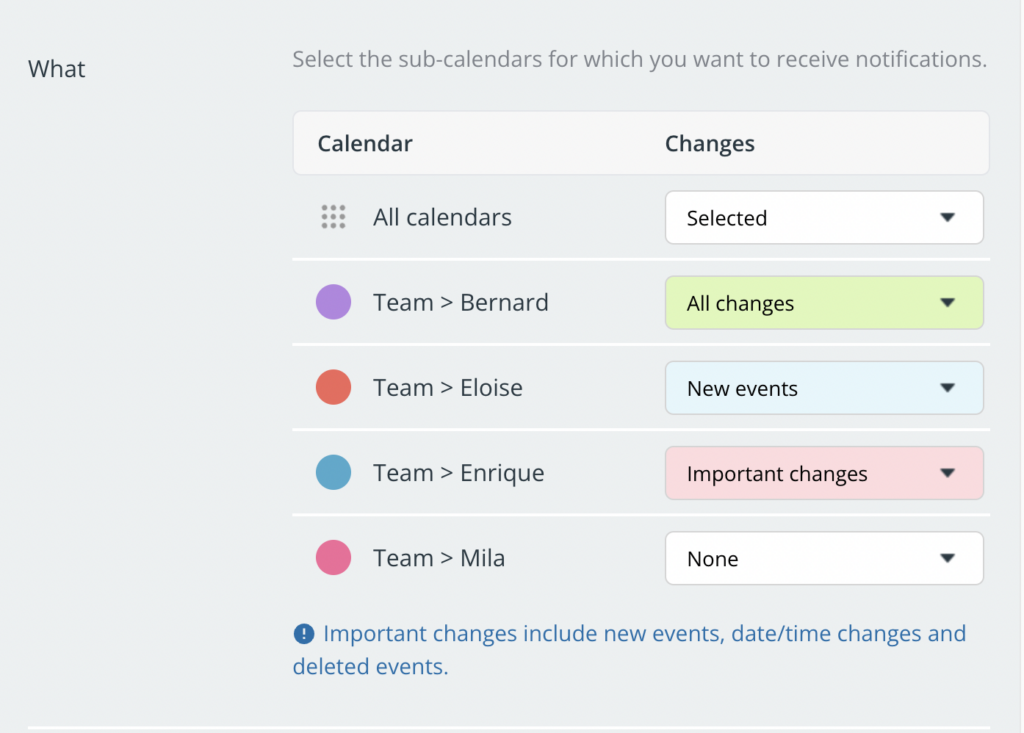
Make sure notifications are set up for the correct sub-calendars.
You can set one notification type to apply to all sub-calendars. Or you can set the notification type individually for each sub-calendar. If a sub-calendar is set to None, you will NOT receive any notifications for changes on that sub-calendar.
To check this: Log into your Teamup account on a browser and open the calendar. Select the blue menu (top right) > Preferences > Email Notifications. Scroll to the What section to review which sub-calendars are selected for notifications.
Check the notification type
Check that the notifications you have set up are subscribed for the correct actions.
When you set up change notifications, you can choose the notification type. This is an important setting as it determines which changes to your calendar will trigger a notification. For example, if you expect an email for date/time changes, but have the notification type set to New events, you will only receive an email when a new event is created and not when a time or date is changed.
Confirm your notifications are set up for the needed triggers:
- All changes: Any changes to an event including event comments and event signups.
- New events: Event creation only.
- Important changes: New events, deleted events, and date/time changes.
- Comments: Event comments only.
- None: No notifications sent.
- Read more here.
To check this: Log into your Teamup account on a browser and open the calendar. Select the blue menu (top right) > Preferences > Email Notifications. Scroll to the What section to review which notification types are selected.
Check your company’s email filters
If you’re on a company or organization email account, ask your IT team to confirm their filters aren’t blocking emails from Teamup.
Check your spam folder and other filters
Notifications can get marked as spam, or sorted into other filtered tabs your email service uses (like Gmail’s Social or Promotions tabs). Check these in addition to your inbox. If your email host blocks non-whitelisted addresses, whitelist notifications@teamup.com.
Missing the Daily Agenda email?
The Daily Agenda is a separate feature from change notifications. It’s a daily digest of your upcoming events, not an alert about calendar changes. It’s only sent if you have events scheduled in the next one to three days. If your calendar has no upcoming events in that window, no email is sent, which can look like a missing notification.
Administrator checks
See more about managing notifications.
Check that the notification is active
Calendar administrators can view notification subscriptions from the calendar settings. Use filters to find the relevant notification if there is a long list. Check the toggle to the left: Green means active. If the toggle is red, the notifications will not be sent.
Check the recipient
When setting up notifications for others, be sure to select the correct calendar user. You can review notifications from the calendar settings. In the Recipient field, type in a (partial) name or email to view notifications for that user.
- If the notification is set up for the wrong user/email address, delete it and set up a new one for the correct user/email address. Or have the user set up their own notification subscription.
A few more things to know
- Notifications aren’t sent for changes to past events, except on paid subscription plans. See upgrade options.
- Notifications are sent about five minutes after a change is made.
- For more, see managing notifications and how to unsubscribe from email notifications.
Contact support
If you’ve checked all of the above and still aren’t receiving notifications, contact our support team. Your email address may have been added to our service provider’s suppression list — this happens automatically if email delivery to that address has failed in the past. We can check this for you and remove it if needed.