
If you’re having trouble logging into your Teamup user account to access your calendar(s), here are some troubleshooting steps.
General login issues
Check your calendar access
If you’re not used to logging in to access the calendar, you may have shareable link access to the calendar and not be required to log into a user account at all. See what to check to tell if you have account-based access or not.
If you have shareable link access, you can simply type or paste the link into your browser’s URL bar. No need to login. You can create a free Teamup user account and add the calendar link to your dashboard. Then you can won’t need to remember/bookmark the calendar link; just log in and access the calendar from any browser or from the Teamup app.
Check for typos
Double-check that you have the correct spelling of your email address and password in the login form. In many cases, a simple typo can cause a login issue.
Turn off your password manager
Some password managers may replace your email address with your name automatically, or otherwise adjust what you’ve entered in the login form. Or they may have the wrong information saved, such as an old email address or mistyped password.
Try turning off any password managers and manually type in your email and password. You may also need to disable autofill options in your browser.
Password reset issues
To reset your account password on a browser or on the Teamup app, select the reset password link below the login form. 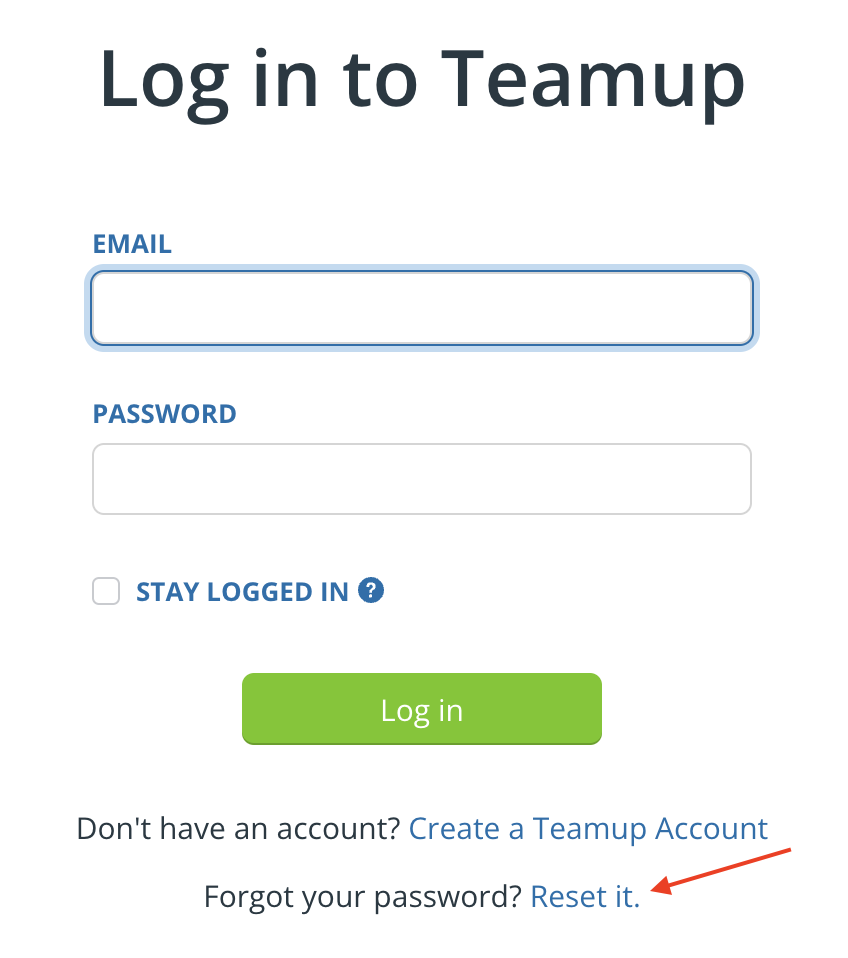
If you do not receive the email to reset your password:
- Check your spam/junk inbox as the emails can be automatically routed there.
- Double-check that you have the correct spelling of your email address in the reset password form.
- If you have numerous email addresses, be sure you are using the email associated with your Teamup account.
If you go through these checks and still can’t access your account, contact our support team. We’ll need you to go through these troubleshooting steps to identify the issue, so it’s a good idea to go ahead with them before contacting us.
Callback error on mobile
Are you getting a “callback error” when trying to log into the Teamup app on an Android device? Here are some things to check.
Allow the device to open supported links
The exact steps or appearance may vary on your device.
- Go to Settings > Apps > Teamup.
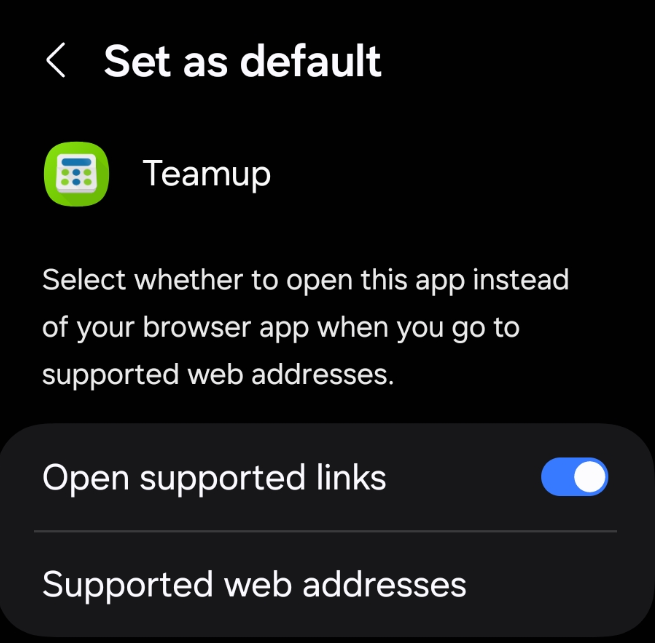
- Under Set as default, make sure the option to Open supported links is toggled ON as shown here:
Try a different mobile browser
Some browsers do not open the Teamup login page properly.
Switch your default mobile browser to a different one. Then try logging into the Teamup app again. Once you’ve successfully logged into the app, you could revert to your preferred browser.
Check specific app and privacy settings
Some devices require further permissions granted. These may vary across devices or operating systems.
Here’s an example of the steps required on an /e/OS device:
-
- Go to Settings > Apps.
- Open Teamup.
- Scroll down to the Open by default option and tap it.
- Activate Open Supported Links, then tap Add Link.
- Check teamup.com to add it as a link. It should then appear above the Add Link section.
If you have tried these steps and are still getting an error, contact our support team.