
Each Teamup master calendar has a designated billing contact who is responsible for the billing and receives communication related to the calendar subscription.
Important contacts for a Teamup Calendar
Each Teamup master calendar is managed separately and has its own subscription, billing contact, and primary contact. It is not required for the primary contact or the billing contact to be calendar users (although they can be) or to have access to the calendar settings; the necessary contact information can be set by a calendar administrator.
The primary contact
Each master calendar has a primary contact email address used for several important communications from Teamup. The calendar creator’s email address is used by default, but it can be changed at anytime by the calendar administrator.
ℹ️ Primary Contact of a Calendar
The billing contact
The billing contact for a Teamup Calendar is the person who is responsible for the billing. They receive communication related to the calendar subscription. The billing contact is often the card holder or procurement officer for an organization.
Invoices and billing related communication are emailed to the billing contact.
- Payment failure notifications are emailed to both billing contact and primary contact.
Best practice: Two secure points of contact
The primary contact email and the billing contact email can be the same. However, having two different contact points as a fail-safe for ensuring important communication is seen.
About the billing contact
Here are some important things to know about the billing contact:
- The billing contact does not need access to the calendar settings (administrator access) and is not required to be a calendar user.
- All Teamup subscriptions are automatically renewed, so it is not necessary for the billing contact to make ongoing manual payments. Simply ensure that payment details are up-to-date and the calendar’s subscription will renew automatically as long as the subscription is active. Here’s how to cancel a subscription.
- Invoices for completed payments are emailed directly to the billing contact. Note that invoices are also always available in the calendar settings.
Manage billing contact and payment details
Direct billing link
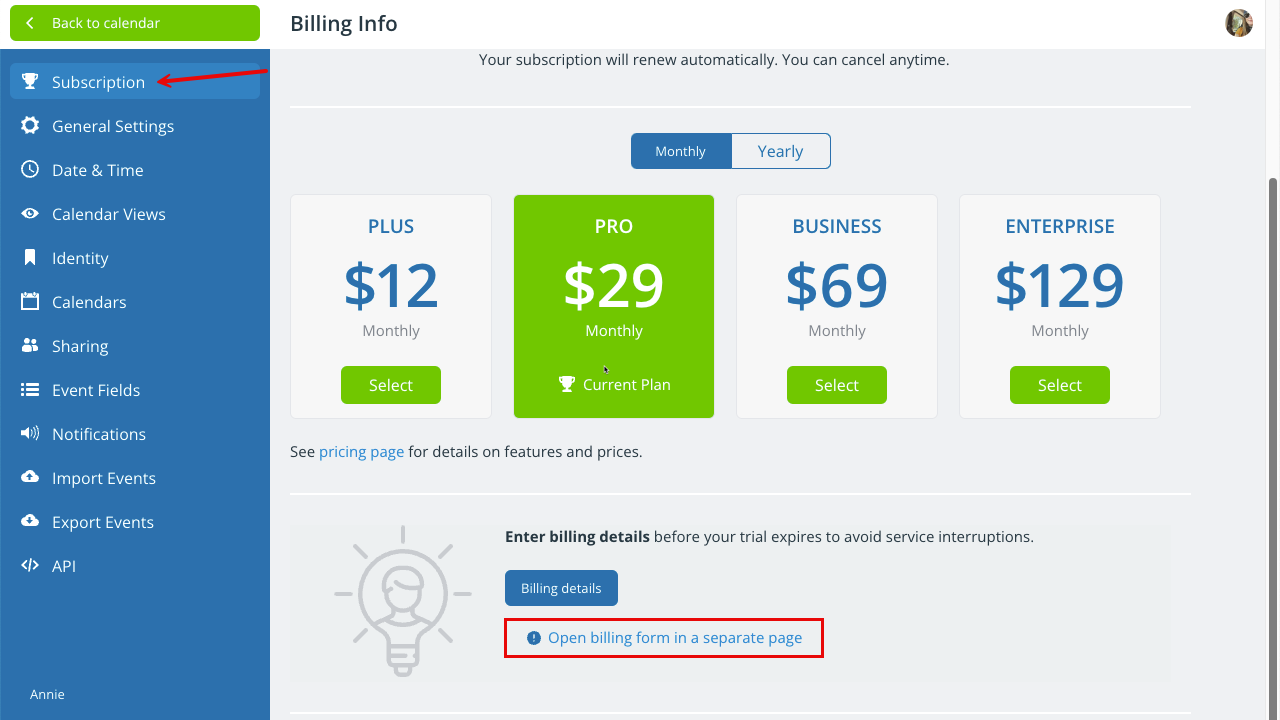
The calendar administrator and the billing contact are often different people working in distinct roles. Often, the billing contact is responsible only for paying the calendar subscription and does not need access to the full calendar settings for any reason. In these cases:
- The billing contact can manage billing and payment details via direct billing link.
- The direct billing link is accessible in Settings > Subscription > Billing.
- The calendar administrator can send the billing link to the billing contact as needed.
- Note that changes to the subscription plan must be made in the calendar settings.
If the billing contact is NOT a calendar administrator:
- Open the calendar in a browser.
- Go to the blue menu (top right).
- Select Settings.
- Select Subscription.
- Scroll to the Billing section.
- Click the link to Open billing form in a separate page.
- A billing form will open. It is linked with the calendar and will have the calendar title, current plan, and next renewal date at the top.
- Copy the link to this billing page and send it to the billing contact.
- The billing contact can update the billing and payment details, then click Save at the bottom.
Calendar settings
Billing and payment details can be managed in the calendar settings. If the billing contact is also a calendar administrator, they can access the Subscription information in the calendar settings as needed to manage billing and payment details.
If the billing contact IS a calendar administrator:
- Open the calendar in a browser.
- Go to the blue menu (top right).
- Select Settings.
- Select Subscription.
- Scroll to the Billing section.
- To add a billing contact and payment method: Click the blue Billing details button. Fill out the form, then Save.
- To update billing/payment details:
- Click the Update Billing Address button. Enter new details, then Save.
- Click the Update Payment Method button. Enter new details, then Save.
ℹ️ See also: How to Manage Calendar Subscription Plans