
To print a Teamup Calendar, select the Print & Export PDF option from the top right menu. This will open your browser’s print dialog. Adjust settings as needed and print. See below for more details.
How to print a Teamup Calendar
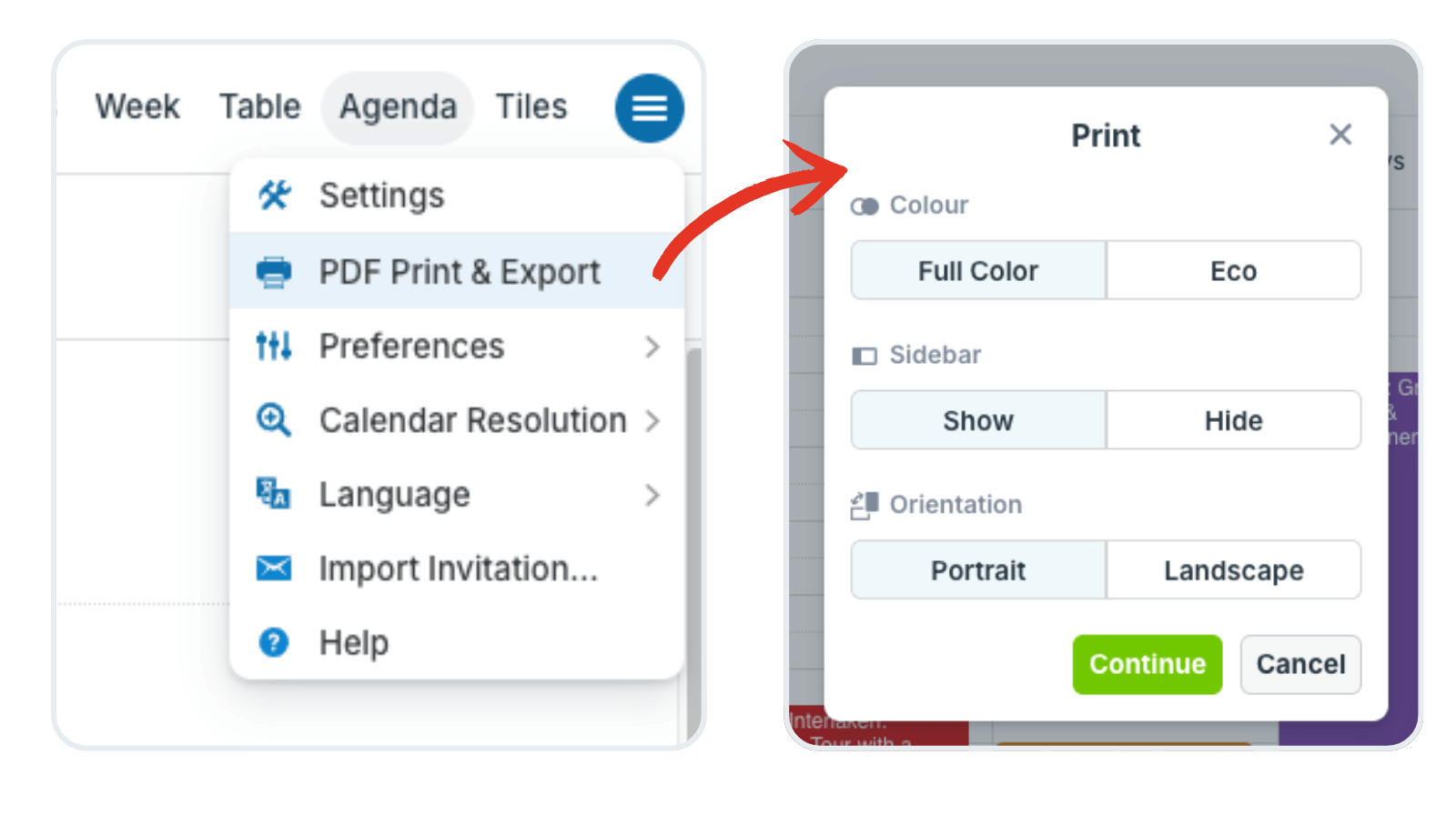
- Open Teamup in a browser.
- Click the blue hamburger menu in the top right.
- Select PDF Print & Export from the menu.
- Adjust the options:
- Full Color or Eco Mode.
- Show or hide the sidebar.
- Portrait or landscape orientation.
- Click the green Continue button.
- Adjust settings in your browser’s print dialog as needed, then print or download a PDF.
Print without the sidebar
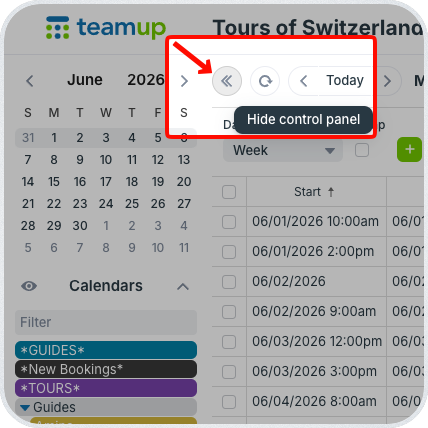
The left sidebar contains the calendar control panel: The date picker, Calendars list, Filters, and About box.
To print without the sidebar visible, click Hide in the Print options before printing.
Alternately, click << to close the sidebar before selecting Print & Export PDF from the hamburger menu.
Eco mode printing
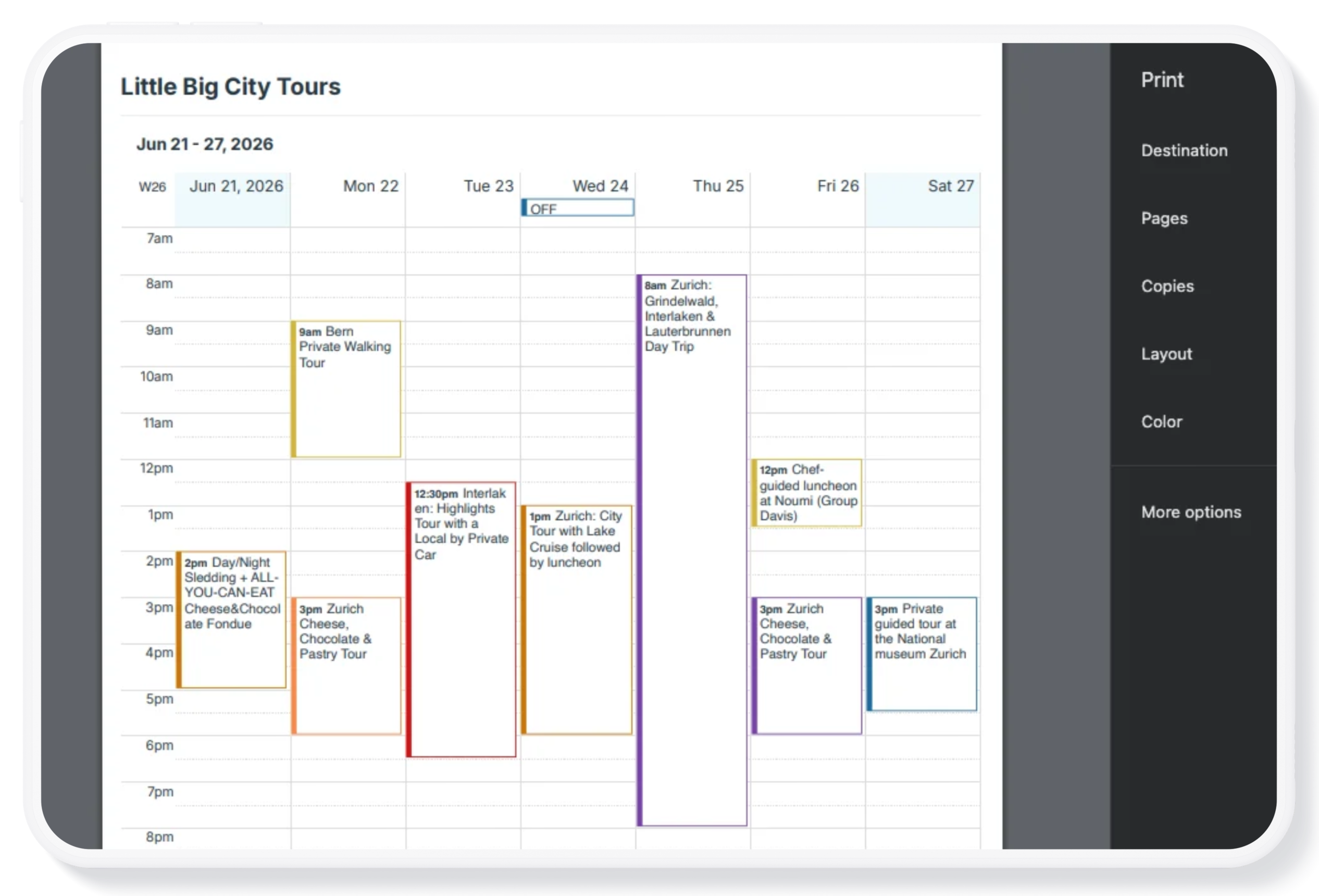
Printing in Eco Mode will display and print events with a colored border only. This reduces the use of ink and can help with the readability of printouts.
- Open Teamup in a browser.
- Click the blue hamburger menu in the top right.
- Select Print & Export PDF from the menu.
- Select Eco from the Print options.
- In browser print settings, choose Color or Black & White, then print or save a PDF.
Fit print-out to page
Sometimes the printed calendar will cut off on the edges, or split an event between two pages.
The scale and layout of the printing depends on the settings in your printer and/or browser. Adjust the scale to a custom value, e.g. 93% instead of the default 100%. Experiment a bit to find the optimal custom value that works for you.
Otherwise, a combination of some of the following may help:
- Switch to landscape mode
- Adjust the paper size.
Print or export
To print or to export the PDF, use the options in your browser’s print dialog. These differ slightly in each browser.
General printing tips
- Collapse the left hand control bar of your calendar before choosing to print your calendar to create more horizontal space. Note that this will prevent the list of calendars from printing.
- Reduce the visible hours so that the daily and weekly views take up less vertical space. This can help with fitting your print-out onto one page. Go to Settings > Date and Time, then adjust the Time Range.
- Download and save your calendar periodically as a PDF file on your device. This can serve as a local backup.