
Some users have experienced a callback error when trying to log into the Teamup app on an Android device. This issue typically only affects devices running an older version of a Samsung browser.
Allow the device to open supported links
The exact steps or appearance may vary on your device.
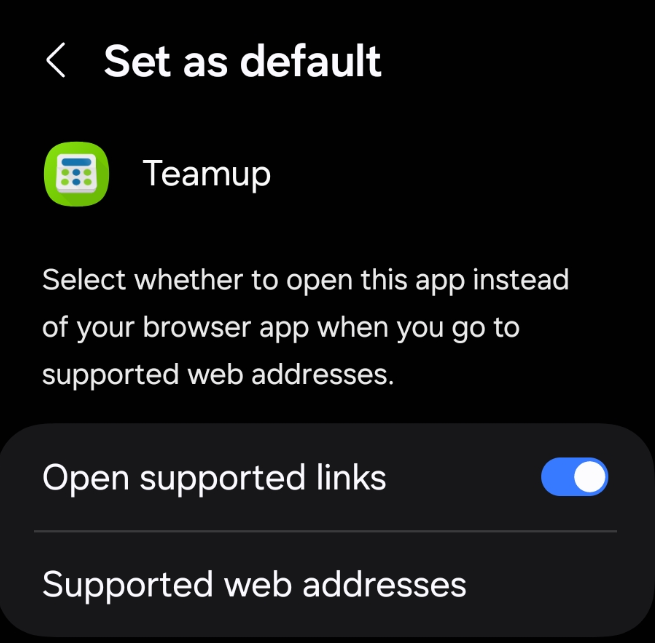
- Go to Settings > Apps > Teamup.
- Under Set as default, make sure the option to Open supported links is toggled ON as shown here:
Try a different mobile browser
Some browsers do not open the Teamup login page properly.
Switch your default mobile browser to a different one. Then try logging into the Teamup app again. Once you’ve successfully logged into the app, you could revert to your preferred browser.
Check specific app and privacy settings
Some devices require further permissions granted. These may vary across devices or operating systems.
Here’s an example of the steps required on an /e/OS device:
-
- Go to Settings > Apps.
- Open Teamup.
- Scroll down to the Open by default option and tap it.
- Activate Open Supported Links, then tap Add Link.
- Check teamup.com to add it as a link. It should then appear above the Add Link section.
If you have tried these steps and are still getting an error, contact our support team.